Inside the BuildAlert letter template editor
19/11/2026
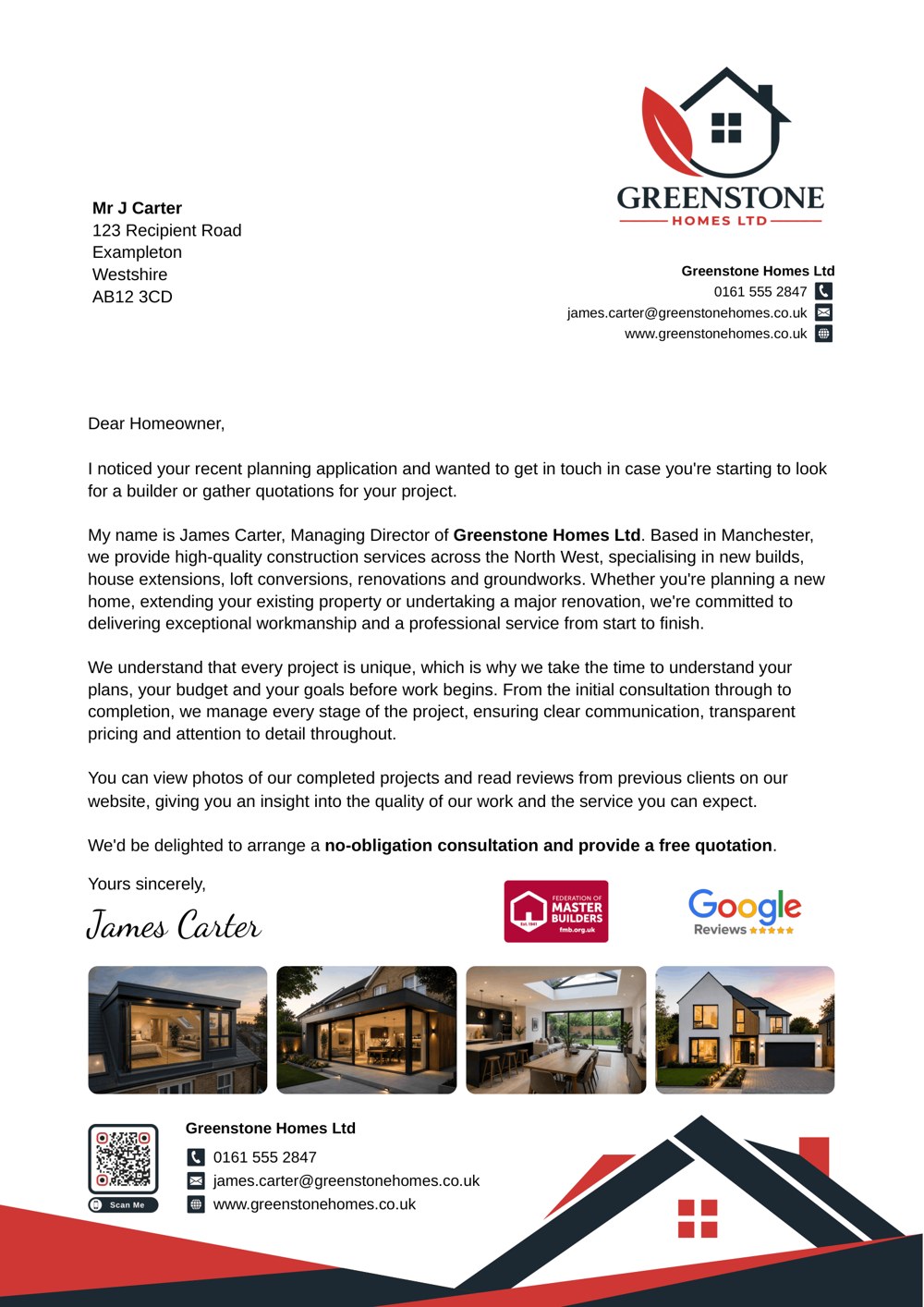
BuildAlert’s letter template editor helps UK builders create personalised letters for homeowners who have submitted planning applications. Choose from 16 designs, write directly on the page, add photos of your work, display the accreditations you hold and include a testimonial from a past customer. Then preview the exact PDF that will be printed and save the template to use again.
A short letter about a proposed extension can do quite a lot. A photo of a similar job shows the kind of work you do. A testimonial tells the homeowner what you were like to work with. A tracked QR code gives them an easy way to see more or get in touch. Here’s how those pieces come together in BuildAlert.
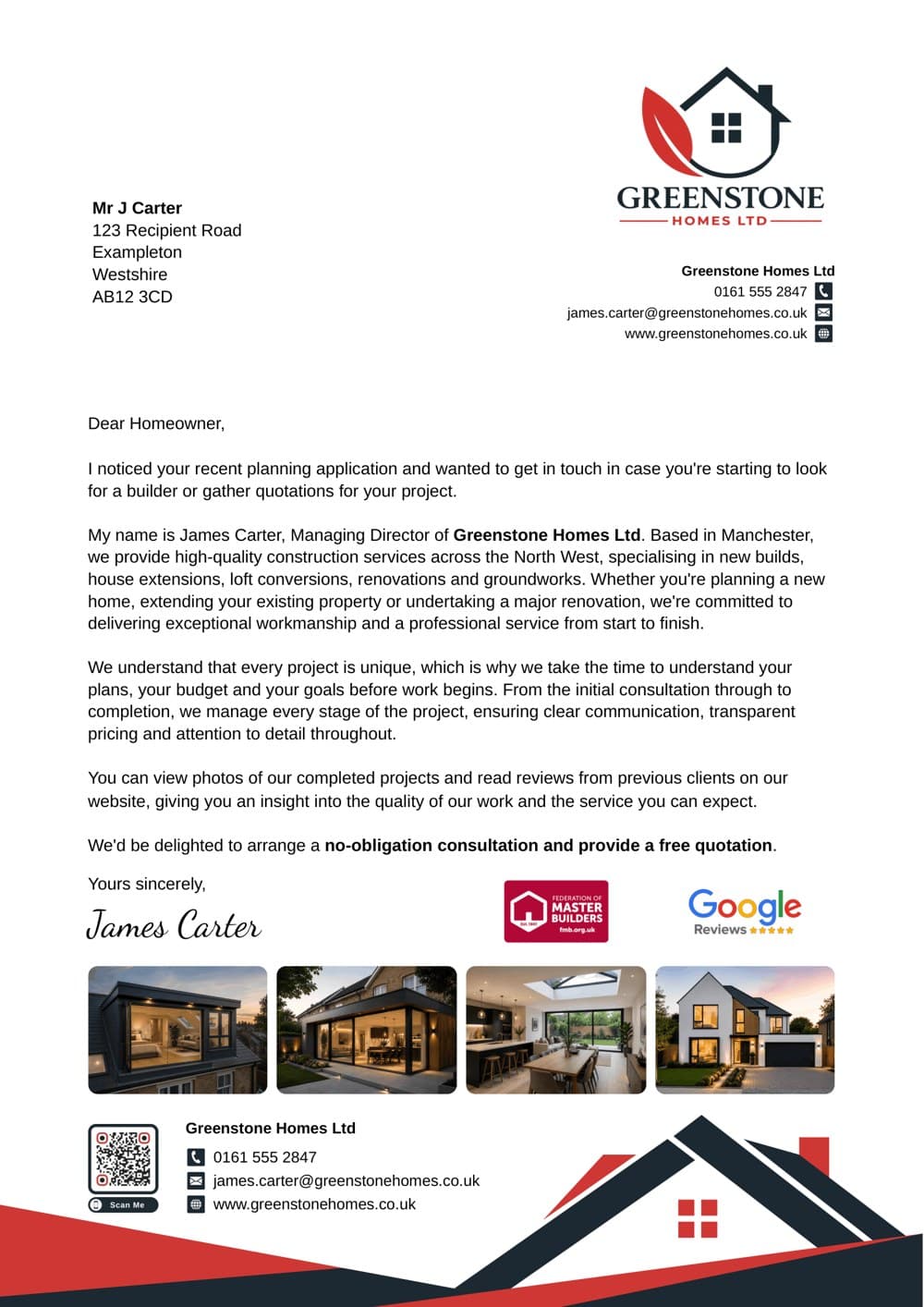
Start with an AI draft, a blank letter or your own PDF
Choose a design and start with a blank letter or ask BuildAlert to write your first draft. The AI uses your business details and services, writes in UK English and presents your services as a bulleted list. The signature widget handles the sign-off.
While you’re creating a new AI letter, Regenerate Letter gives you a fresh draft and Request AI changes lets you revise it with a plain-English instruction. For example, you could ask it to shorten the opening, lead with your extension work and end by inviting the homeowner to talk through their plans. You can then edit the wording directly on the page.
There’s also a request writing option. If you already have artwork you want to use, you can upload a letter PDF or an A5 or A6 postcard PDF. Postcard uploads include a proof to check and confirm.
Choose from 16 designs and make the letter your own
The editor includes these designs:
- Single Footer Bar
- Horizontal Swirls
- Corner Swirls
- Edge
- Roofline
- Vertex
- Horizon
- Top Circle
- Drift
- Rooftops
- Frame
- Azure
- Gable
- Excavator
- Ridge
- Banner
Each design starts with its own colours. Choose a preset swatch or enter your own brand colours. Most designs support two colours and let you swap their positions with Invert colours. The Excavator design has a fixed excavator illustration and a stripe you can recolour.
Upload your logo, scale it from 50% to 100% and adjust the space above it. On nine designs you can change the size, colour and weight of the footer contact text. Three designs offer those controls in the header. Depending on the design, you can place a QR code in the header, footer or both.
Write on the page and personalise every copy
Click into the letter to edit the body or update the letterhead details. The toolbar includes headings, bold, italic, underline, text colour, bullet points and alignment. Body fonts include Arial, Times New Roman, Courier New and Open Sans at 10, 11 or 12 points. The editor uses print point sizes and cleans up formatting brought in from pasted text.
The Personalise menu inserts fields for the applicant’s name and address, location, date and planning reference. BuildAlert fills in the fields when it generates each letter. You can write and style a template once, then use it for multiple planning applicants with their own details filled in.
Add a project photo in a few clicks
Add a row, choose the Image widget and upload a photo of a job you’ve completed. Choose whether to crop it to fit the space or show the whole image, adjust its height and add a one-line caption in a coloured bar. A caption like “Single-storey rear extension in Hitchin” helps a homeowner see what the picture has to do with their own plans.
Each row can have two to six columns, with options including a 50/25/25 split. You can add more rows and adjust the spacing above and below each one. Give a project photo the wider column and put your accreditations or QR code beside it. New templates start with a sample row so you can see how the widgets fit together.
Show the accreditations and credentials you hold
Trust badges are small graphics that identify things such as a trade membership, accreditation, marketplace presence or insurance. For a homeowner meeting your company through a letter, a recognisable badge helps them spot a relevant credential and gives them something specific to look up. Choose the badges your business is entitled to display.
BuildAlert includes 12 trust badges. You can choose from Federation of Master Builders (FMB), Checkatrade, MyBuilder, Trust A Trader, TrustMark, Constructionline Gold, SSIP, CHAS, Gas Safe, Which? Trusted Trader, Public Liability Insured and DBS Checked. If you use another organisation’s badge or your own accreditation artwork, upload it with the Custom icon widget.
Put a real customer testimonial on the letter
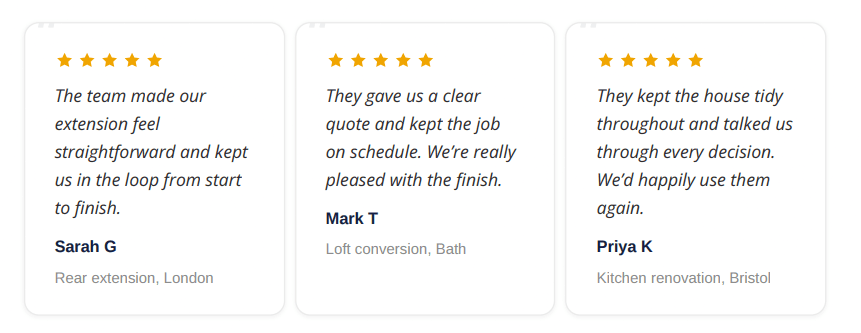
A photo shows the finished job. A testimonial can tell the homeowner what it was like to live through it, from how your team communicated to how you left the site at the end of the day. A short, specific quote from a customer with a similar project can sit right next to the photo.
The Testimonial widget gives you a card with five stars, space for the quote, the reviewer’s name and a short line about the project. The card stays together if your letter runs across a page break.
There are also five review-platform badges for Google, Checkatrade, MyBuilder, Trust A Trader and Facebook. These display the platform’s logo. Use the testimonial card to put the customer’s actual words on the page.
Add a signature and a tracked QR code
The Signature widget comes with four script fonts and an editable sign-off line, such as “Yours sincerely,”. You can place it in a row alongside other widgets.
Use the QR code widget to add one of your saved BuildAlert codes to the body of the letter. Contact QR codes give the homeowner a way to reach you or save your details. Website QR codes can take them to a page you choose, such as a gallery of extension projects. You can customise the colours, add your logo and include a Scan me overlay. The code uses a tracked short link, so you can see how many times it’s been scanned.
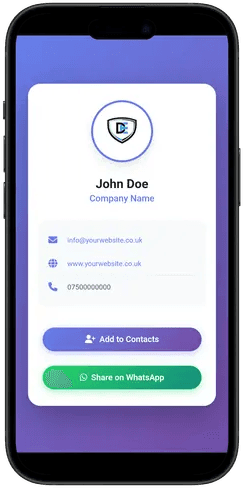 A contact QR code opens your business profile.
Add an extra page of recent work or your FMB certificate
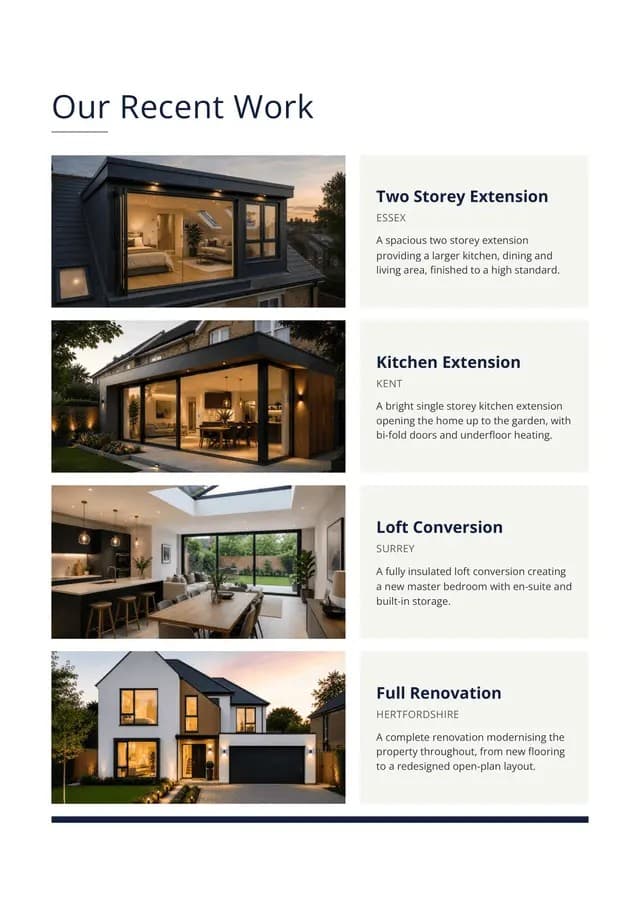
If you have several relevant jobs to show, add an Our Recent Work page. It holds up to four projects, each with a photo, title, location and short description. One control sets the title size across the page. You can keep the introduction on the front page and use the insert to show the range of work you’ve done.
On the web, you can also upload your FMB certificate as a PDF. BuildAlert adds the certificate as supplied. You can add one Recent Work insert and one FMB certificate per letter. They follow the letter in the order you added them, each with its own layout.
Certificate of Membership
Your Company Ltd
Check the printed PDF and choose your print options
The live preview updates as you edit. When you’re ready, open Preview Printed PDF to check the actual print file, including widgets and inserts. It’s a good place to check that your photo is cropped where you want it, the QR code has room around it and the full testimonial is together on one page.
BuildAlert prints and posts letters through Stannp. Letters are printed single-sided, with optional 120gsm premium paper and a brown confidential envelope.
| Item | Credits |
|---|---|
| Standard letter | 1 |
| 120gsm premium paper | +0.1 |
| Brown confidential envelope | +0.1 |
| Each insert | +0.05 |
| Postcard | 1.25 |
Reuse a template, schedule a follow-up or edit on mobile
From your template list, you can view a PDF, duplicate a template, edit it, delete it or change its add-ons. For example, duplicate an extension letter and swap the copy, photo and testimonial for a loft conversion campaign while keeping your branding.
You can also choose a second template and schedule a follow-up after a set number of days or when the planning application is approved. The first letter can introduce your company, and the second can show a relevant project and offer to talk through the next steps.
On mobile, you can choose from all 16 designs, edit the letter, add widgets, change colours, use QR codes, request AI changes while creating a new AI letter, preview the result and add a Featured Work insert. The FMB certificate insert is available on the web.
Create your first BuildAlert letter template
Start with a design you like, upload a photo of the kind of job you want more of and add a testimonial that tells the homeowner what it’s like to work with you. Then check the printed PDF and save the template for your next planning lead.
You can create and customise a template for free. Try the BuildAlert letter template editor.